raster data
[1]:
import os

import geopandas as gpd
import polars as pl
import psycopg2
from dotenv import load_dotenv

load_dotenv()
URI = os.getenv("POSTGRES")
1. Fetch raster data
1.1. fetch from PostGIS
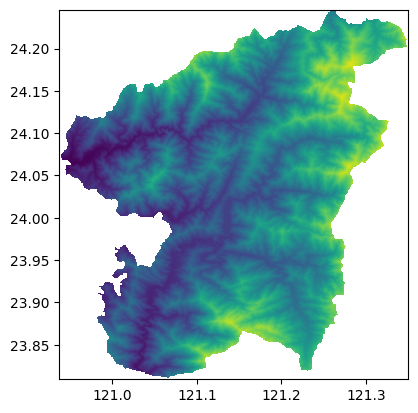
The example here is the DTM raster data from Renai Nantou, Taiwan. The data is stored in a PostGIS database. We will fetch the data and display it using the rasterio library.
[2]:
from rasterio.io import MemoryFile
from rasterio.plot import show


with psycopg2.connect(URI) as conn:
    with conn.cursor() as cur:
        cur.execute('''
        SET postgis.gdal_enabled_drivers TO 'GTiff';

        WITH boundary AS (
        SELECT geometry as geom
        FROM geometry.boundary_town
        WHERE city_name = '南投縣' and town_name = '仁愛鄉'
        )
        SELECT ST_AsGDALRaster(
            ST_Union(ST_Clip(rast, geom)), 'GTiff'
            ) AS clipped_raster
        FROM geometry.nature_dtm, boundary
        WHERE ST_Intersects(rast, geom)
        ''')

        for row in cur:
            rast = row[0].tobytes()
            with MemoryFile(rast).open() as dataset:
                data_array = dataset.read()
                transform = dataset.transform
                nodata_value = dataset.nodata
                show(dataset)
1.2. Use rasterio to read raster data
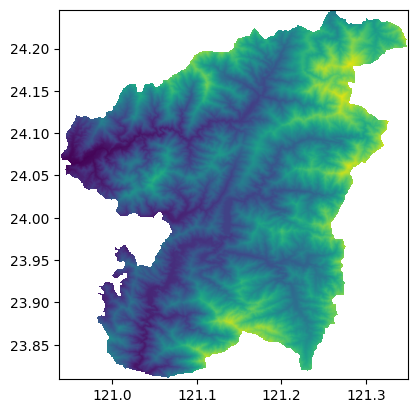
NOTE: Before processing raster data to h3, you have to check the crs of the raster data. If the crs is not EPSG:4326, you have to reproject the raster data to EPSG:4326.
[3]:
import rasterio as rio

with rio.open('data/test_raster.tif') as src:
    data = src.read()
    transform = src.transform
    nodata = src.nodata
    show(src)
2. Convert raster to h3
use process_from_raster() function to convert raster to h3, don’t need to set_aggregation_strategy, because the process_from_raster() can only accept one band at the time (2D array).
[4]:
from h3_toolkit import H3Toolkit

toolkit = H3Toolkit()

result = (
    toolkit
    .process_from_raster(
        data = data_array[0],
        transform = transform,
        resolution = 12,
        nodata_value= int(nodata_value)
    )
)

output_12 = result.get_result()
output_12.head()
[4]:
shape: (5, 2)
| hex_id | value |
|---|---|
| str | i16 |
| "8c4ba068a01b5ff" | 3114 |
| "8c4ba068a0517ff" | 3114 |
| "8c4ba068a0a2dff" | 3114 |
| "8c4ba068a0b53ff" | 3114 |
| "8c4ba068a1831ff" | 3114 |
3. Scale current h3 resolution to the target resolution
[5]:
from h3_toolkit.aggregation import Mean

toolkit = H3Toolkit()

result = (
    toolkit
    .set_aggregation_strategy(
        {
            'value': Mean()
        }
    )
    .process_from_h3(
        data = output_12,
        source_resolution = 12,
        target_resolution= 9,
        h3_col='hex_id'
    )
)

output_9 = result.get_result()
output_9.head()
[5]:
shape: (5, 2)
| hex_id | value |
|---|---|
| str | f64 |
| "894ba2af297ffff" | 1290.469388 |
| "894ba2aeab7ffff" | 1050.22449 |
| "894ba2a6663ffff" | 918.422741 |
| "894ba068647ffff" | 1881.798834 |
| "894ba2a5647ffff" | 701.043732 |
4. Visualization
[6]:
import mapclassify as mc
import pandas as pd
import pydeck as pdk
from matplotlib import colormaps

INITIAL_VIEW_STATE = {
    'latitude':24.032518695904923,
    'longitude':121.15366859978752,
    'zoom':9.5,
    'max_zoom':13,
    'pitch':0,
    'bearing':0
}
[7]:
from h3_toolkit.visualization import show_h3

# Visualize with Greens colormap suitable for elevation data
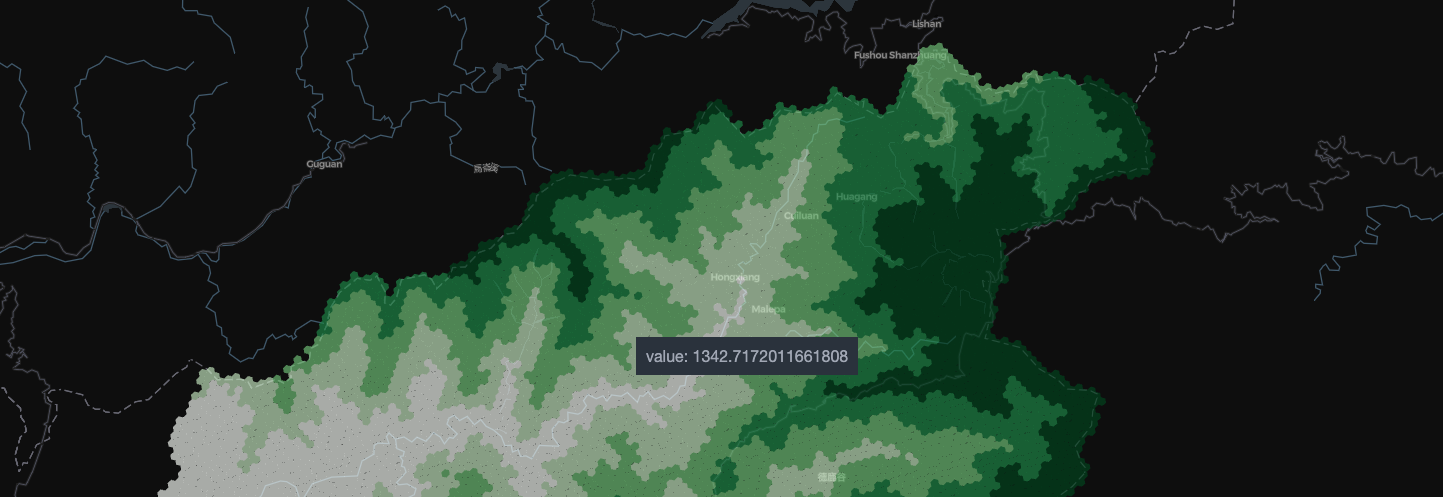
show_h3(output_9, 'value', cmap='Greens')
[ ]:
show_h3(output_9, 'value')
Due to performance limitations when rendering large H3 datasets on the web, here’s a screenshot example of the visualization. For an interactive map, you can clone the notebook and run it locally in your environment